
You have a good-looking presentation that you need to get to your colleague before a critical meeting; you have a 4GB file that you are in a hurry to transfer to his laptop. You just connect your high speed USB device, press the copy button, and realize in dismay that Windows is telling you it will take 37 minutes to complete the copy, even though you were hoping for a faster usb drive . Sound familiar? The ensuing walk of shame back to your desk looking desperately at a better answer could have been prevented by a basic speed test.
Not only can knowing the performance of the USB drive save you embarrassment, but it can also assist you in making a decision, troubleshooting your performance issues, and can assist you in determining whether you are getting what you are paying for in your storage device usb flash drive. It knows USB speeds, the name of the manufacturer who can save hours of disappointment, a content developer who has got video files to move, an IT specialist who has got data backups to retrieve, or simply a person who thinks about the time that he/she wastes.
What Actually Determines Your USB Drive’s Speed?
Before discussing the methods of testing, it is important to see what influences USB performance. The rate bottleneck is typically provided by one of the three sources:
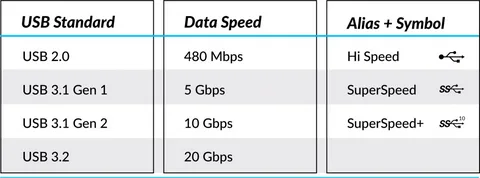
USB Standards and Port Types: Your drive may be USB 3.0, but when you insert it into a USB 2.0 port, you are only capable of about 60 MB/s drive speed. USB 3.0 and later standards have a theoretical maximum speed of 640 MB/s or more, although in practice, the speed can vary widely in USB speed tests.
Device Hardware Limitations: USB drives are not all created equally. The internal flash memory controller, NAND flash quality, and general build quality have a massive effect on performance. Even at the same USB standard, a genuine Samsung or SanDisk drive will normally be faster than generic alternatives and less likely to have bad sectors.
The Counterfeit Problem: This is where it becomes tricky. There are counterfeit USB drives around, and they claim higher capacities and speeds that do not actually exist. These devices are not only bad at their work, but they can even introduce errors and corrupt your information. You can test your drives to find out these problematic devices before they can actually damage anything random data transfer techniques.
Quick Built-In Tests (Zero Downloads Required)
In some cases, you even have the most desirable tools on your computer. These are the native alternatives on both Windows and Linux boot loader software:
For Windows Users: Command Prompt Administrator: Windows System Assessment Tool read speed:
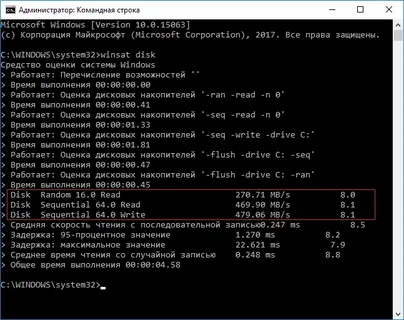
winsat disk -drive C:
Then substitute C: with the letter of your USB drive. This command shows read and write performance information in sequence, specifically focusing on sequential data access, as provided by the built-in benchmarking tool at Microsoft.
For Linux Users: GNOME Disks utility (which is commonly called Disks in your applications menu) has a built-in benchmark option that is free to use. All you have to do is select your USB drive, press the menu button, and then select Benchmark. It’s that straightforward.
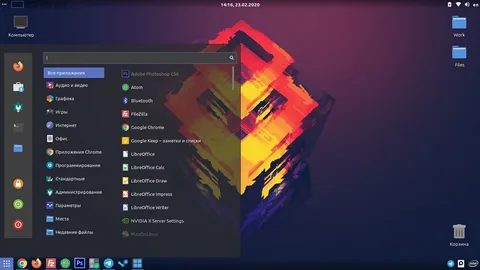
These default features allow trusted baseline measurements without adding any more software.
Top Free Tools for Comprehensive Testing
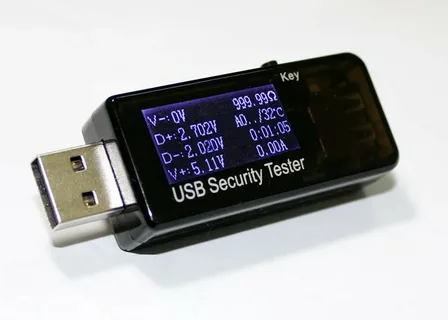
These free applications provide complete and professional-level information when you need to test drive and break down performance further:
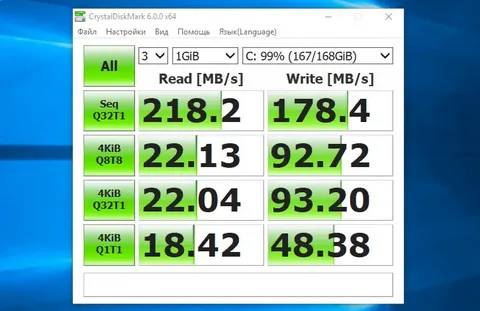
CrystalDiskMark The CrystalDiskMark is the gold standard of the storage benchmarking. It has a clean interface that shows both sequential and random read/write speeds in a simple-to-understand format. The utility performs several test cycles to ensure precision and to give you the option of controlling test file sizes and test speed.
RMPrepUSB is a combination of a speed test and USB drive prepper. This is particularly useful in counterfeit drive detection, as it does a speed test of the hard capacity check.
Check Flash is a company that checks on fake drives. This is fundamentally a verification tool, but it has speed testing and can also list drives that report false capacities.
MiniTool Partition Wizard offers disk benchmarking of flash drives as part of the complete disk partition manipulation package. Speed test option: It is a premium option and provides detailed performance information.
USBDeview also has another approach, which counts all the USB devices that your system has ever tested. Its right- click Speed test option provides the speed test result quickly without opening any other programmes.
Step-by-Step Testing Guide
We can go through the two most readily available methods:
Method 1: Windows Command Prompt Test
- Plug in your USB drive and record the drive letter (e.g., E:)
- To run as an administrator, press Win+R, enter cmd, and press Ctrl+Shift+Enter.
- Type the following command: winsat disk -disk E: (E: is your disk drive letter)
- Wait till the test is done- this will normally take 2-3 minutes.
- Look at the results with sequential read and write speeds for small files.
Method 2: CrystalDiskMark Testing
- Get CrystaldiskMark from the official site and install.
- Install the app and choose your USB drive in the dropdown list.
- Select test size (1GB is normally enough to load USB drives)
- Click All to perform full tests, or choose individual tests.
- Wait until complete- larger test sizes are longer to complete, but allow more accurate results.
Pro Tips for Accurate Results in your data management :
- Close. Make sure your USB is plugged into the right port type (USB 3.0+ will be marked as blue or with the SS label)
- Repeat the tests and take an average of the results.
- Test at various levels of capacity–performance tends to decrease when drives are almost full the four-phase process.
Understanding Your Results
Raw numbers for external storage devices connected are nothing without context. This is what your findings mean:
Compare Against Specifications: Find out the speeds claimed by your drive manufacturer. Performance in the real world is usually between 60-80% of what is promised in advertisements because of many overhead factors write operations.
Identify Performance Issues: When your performance is far below what it should be, think about the following:
- Wrong port type (USB 2.0 vs 3.0+)
- End-of-life hardware with old flash cells.
- A fake piece of equipment having substandard parts.
- Drivers or system conflict with the USB port.
Realistic Expectations: USB 2.0 drives are limited to about 35-60 MB/s write speed in actual use. Quality models of USB 3.0 drives will reach 100-200 MB/s, and the top USB 3.1+ drives can reach 300+ MB/s.
Essential Performance Tips
Port Choice: There is no bad choice to install a high-speed drive on USB 3.0 or more. Change in performance is staggering–a quality drive can go to 150 MB/s on USB 3.0, and only 35 MB/s on USB 2.0.
Buyer Beware: Oddly cheap drives with unknown brands are either going to overquote their features or will be using low-quality components. The established manufacturers should be used in major information.
Skip Defragmentation: Flash disk storage does not react to defragmentation in the same manner as a conventional hard drive device. In fact, defragging a USB is a useless operation that increases the number of write cycles and thereby reduces the lifespan of the drive.
Temperature considerations: USB drives are going to slow down due to overheating. There is a possibility that thermal management is the reason behind the loss of speed when performing long transfers.
Take Control of Your Data Transfer Experience
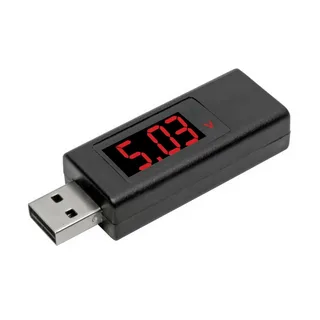
Now you can easily gauge the real performance of any USB drive in the real world, no longer is there any guesswork or ugly surprises when it comes to any critical file transfer. Periodic speed testing will help you see which drives are not working properly before they destroy the data, and will also ensure that you are receiving the performance you paid for.
Hours of frustration and even hard drive data catastrophes might be prevented with minutes of testing your drives. You are able to make informed decisions about your storage tools with either the available built-in system tools or with specific benchmarking programs.
Do you know how to implement this knowledge at work? Test your current USB drives and give us a report on your findings in the comments section. Discovered a fairly inexpensive low-end drive, or discovered a poor up-market model? Described experiences are able to lead other people to make a superior purchase decision.
We will go into greater detail later, discussing more advanced issues, such as the difference between USB-C cable performance and comparing the performance of SSD and traditional USB drives. Meanwhile, we will keep on presenting more pragmatic data regarding optimizing your data transmission workflow.
Summary
Basic USB drive testing is easier than many people believe and requires no third-party software or in-built system programs. A little knowledge about the higher level of options and considerations that can affect the quality of the hardware available at the higher levels- USB standards can help you troubleshoot and decide, and buy the correct hardware. Regular testing will help avoid fake hardware as well as aging hardware that may even fail to work. With the help of the above methods, the performance of any USB drive can be easily estimated, and the process of data transfer can also be simplified.