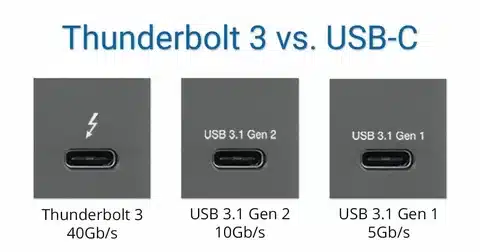
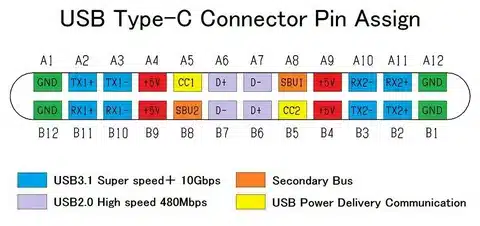
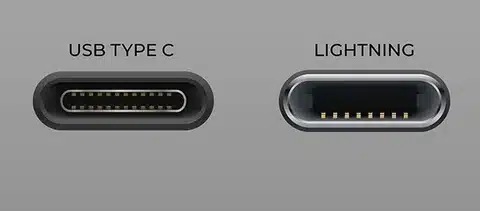
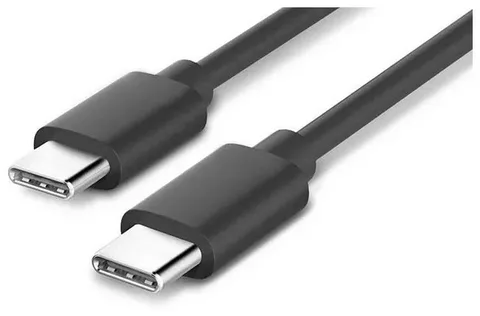
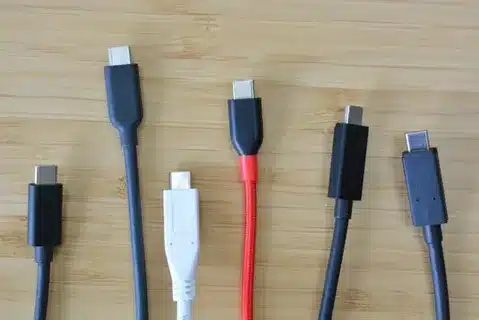
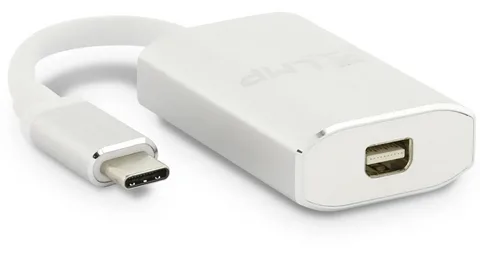
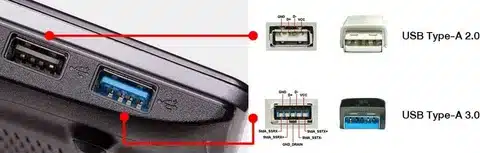
USB Type-C was officially released in 2014 as a revolutionary connector that combined power, data, and video into a single, compact, and reversible design. Developed by the USB Implementers Forum (USB-IF), it quickly gained adoption because it supported faster USB 3.1 speeds, higher power delivery up to 100W, and alternate modes like DisplayPort and Thunderbolt. Over the years, Type-C became the universal standard across laptops, smartphones, and tablets, gradually replacing older USB-A, micro-USB, and even Apple’s Lightning in some devices. Its timeline marks a major shift in connectivity—turning what started as a new port in 2014 into the global default connector by the mid-2020s, shaping how modern devices charge, transfer data, and connect to displays.