Uncategorized

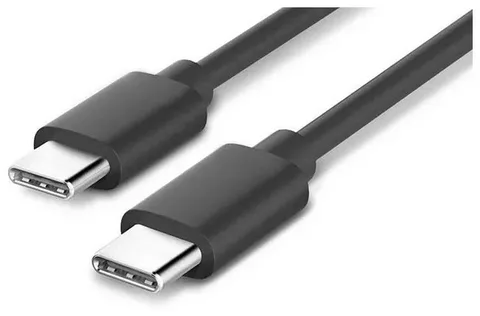
Black USB Type-C to USB-C cable for power delivery and syncing
Uncategorized

USB Type C Release Date: The Complete Timeline That Changed Everything

USB Type-C was officially released in 2014 as a revolutionary connector that combined power, data, and video into a single, compact, and reversible design. Developed by the USB Implementers Forum (USB-IF), it quickly gained adoption because it supported faster USB 3.1 speeds, higher power delivery up to 100W, and alternate modes like DisplayPort and Thunderbolt. Over the years, Type-C became the universal standard across laptops, smartphones, and tablets, gradually replacing older USB-A, micro-USB, and even Apple’s Lightning in some devices. Its timeline marks a major shift in connectivity—turning what started as a new port in 2014 into the global default connector by the mid-2020s, shaping how modern devices charge, transfer data, and connect to displays.
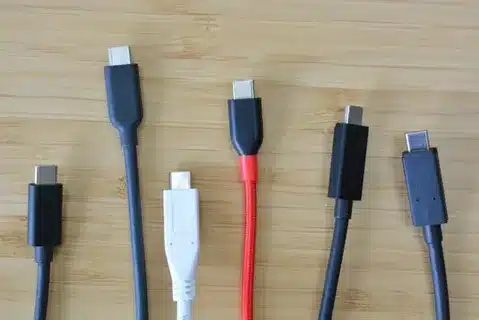
Multiple USB-C cables lined up for quality and compatibility testing
Uncategorized

USB-C Cable Test: Expert Guide to Finding Safe, Fast Charging Cables

Testing a USB-C cable is essential to ensure it’s both safe and capable of fast charging and data transfer. A proper USB-C cable test checks for build quality, supported power delivery (wattage), and data speed ratings, since not all cables are created equal—some may only handle basic charging or slow USB 2.0 speeds. Experts recommend using certified cables that meet USB-IF standards and performing tests with tools or adapters that measure voltage, current, and transfer rates. Cheap or poorly made cables can overheat, damage devices, or fail to deliver promised performance. In short, cable testing helps you identify reliable, high-quality USB-C cables that protect your devices while giving you the fastest charging and transfer experience possible.

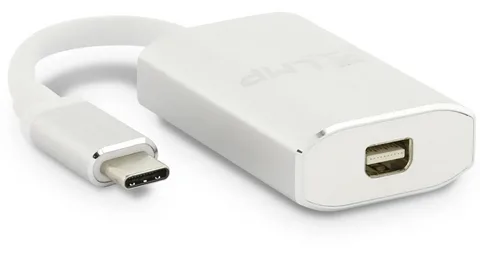
White USB-C to Mini HDMI adapter for display output
Uncategorized

Can USB-C Be Used for Display? Complete Guide to DisplayPort Alt Mode

USB-C can be used for display through a feature called DisplayPort Alternate Mode (Alt Mode), which allows the same reversible USB-C connector to transmit video and audio signals alongside data and power. With the right cable or adapter, a USB-C port can connect directly to monitors, TVs, or projectors, supporting resolutions up to 8K depending on the device’s specifications. However, not every USB-C port supports DisplayPort Alt Mode, as it depends on the device’s hardware and manufacturer implementation. In essence, USB-C with Alt Mode turns one compact port into a versatile hub for charging, data transfer, and high-quality video output, making it a key standard for modern laptops, tablets, and smartphones.

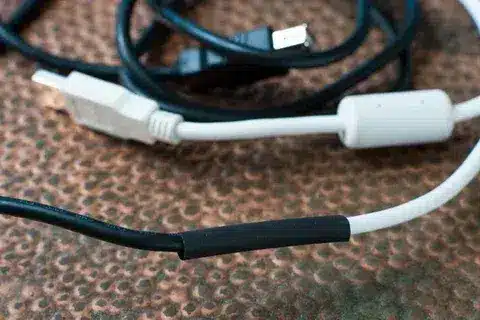
Close up of USB cable connection joined and insulated using heat shrink tubing
Uncategorized

How to Connect Two USB-C Cables: Your Complete Guide

The process of connecting two USB cables with the help of USB couplers or extension cables is extremely simple; it is safe and reliable to increase the distance without any impact on performance. Splicing may be performed by hand, but commercial adapters are the best and will give the best results with the least risk to the user, so the vast majority who want to make use of longer USB cables would use a commercial adapter.

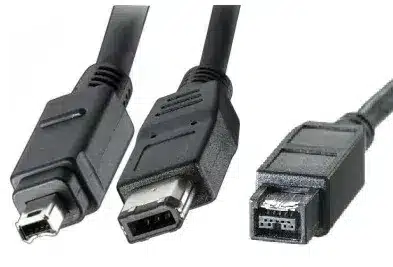
FireWire connectors including mini, 6 pin, and 9 pin types used in IEEE 1394 standard
Uncategorized

What Is FireWire? The Legacy of High-Speed Data Transfer Technology

FireWire (IEEE 1394) was a high-speed data transfer standard developed by Apple that controlled professional audio and video markets throughout the 2000s, offering superior performance to first-generation USB components, including the ability to daisy-chain, hot-plug, and transfer isochronous data. FireWire was later supplanted by USB, which is both technically inferior (only up to 800 Mbps) and can only support 63 devices without a hub, but nonetheless, its innovations are still visible today in newer connectivity technologies like Thunderbolt and USB-C.

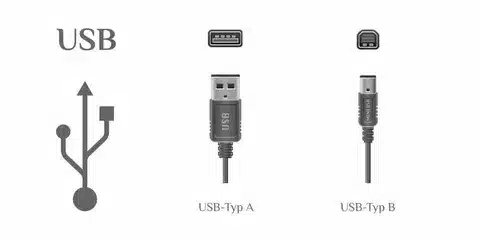
Diagram comparing USB Type A and USB Type B connectors with labels
Uncategorized

FireWire vs USB: Why the Better Tech Lost the War

The guide explores the rivalry between FireWire and USB, explaining why FireWire—though technically superior in speed and consistent performance for its time—ultimately lost to USB in the consumer market. FireWire offered faster sustained data transfers, especially valuable for video editing and professional applications, but it was more expensive to implement, had higher licensing fees, and lacked widespread manufacturer support. USB, by contrast, was cheaper, backward-compatible, and quickly became the universal standard across PCs and peripherals, gaining mass adoption despite lower early speeds. Over time, USB evolved into faster versions like USB 3.0 and USB-C, leaving FireWire obsolete. The article highlights how cost, compatibility, and ecosystem adoption mattered more than raw performance, shaping the future of connectivity.

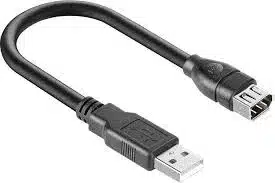
Black FireWire to USB adapter cable designed for connecting older FireWire devices to modern computers with USB ports
Uncategorized

FireWire to USB: Complete Guide for Legacy Device Connectivity

The most notable aspects of FireWire to USB connectivity include understanding that there are no direct adapter solutions available because of the incompatibility of the protocols, considering the potential sources of solutions like PCIe cards and Thunderbolt adapters, adherence to the correct installation process to guarantee reliability, and planning of long-term support of legacy devices, as the technology is subject to further changes.

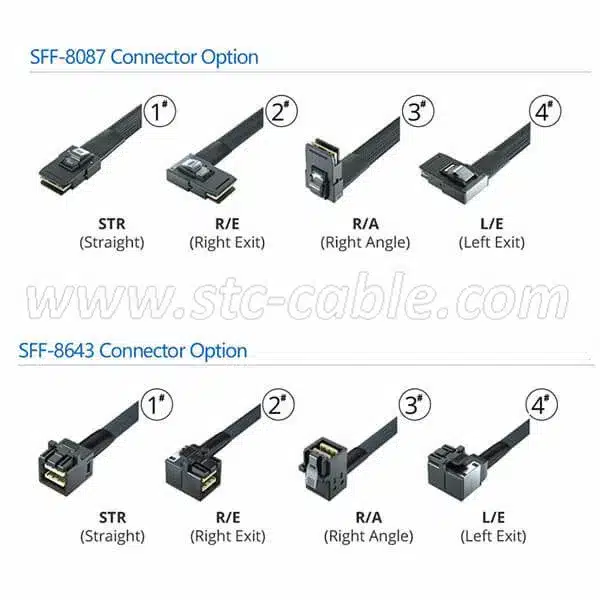
Diagram showing SAS connector types SFF-8087 and SFF-8643 with variations such as straight, right exit, right angle, and left exit
Uncategorized

The Most Common Types of SAS Cables & Connectors (Explained)

Storage system performance and reliability depend on the choice of SAS cable. The most common types of connectors are standard SAS (SFF-8482), Mini-SAS (SFF-8087), and Mini-SAS HD (SFF-8643/8644) in various speeds and uses. Breakout cables allow flexibility in mixed environments, and appropriate cable choice guarantees the best signal integrity and long-term compatibility in storage deployment in an enterprise.

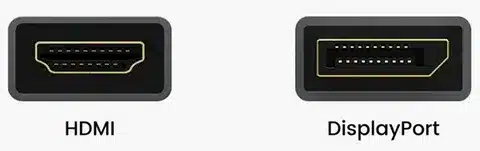
HDMI port compared to DisplayPort port diagram
Uncategorized

DisplayPort vs HDMI: Best Choice for Gaming, Work & Home Theater (2025 Guide)

The guide compares DisplayPort and HDMI to help users pick the best connection for gaming, work, and home theater in 2025. HDMI remains the universal choice for TVs, consoles, and home entertainment, supporting features like 8K resolution, HDR, and eARC for immersive audio and video. DisplayPort, however, is preferred by PC gamers and professionals, offering higher refresh rates, multi-monitor support, and better performance at 4K and beyond, making it ideal for esports, design, and productivity setups. With HDMI 2.1 and DisplayPort 2.1 pushing bandwidth and resolution limits even further, the article concludes that the right choice depends on your setup: HDMI for plug-and-play home theater and consoles, DisplayPort for high-performance PC gaming and professional workstations.

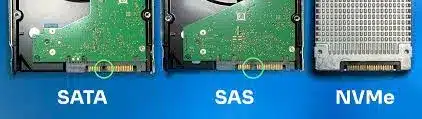
Comparison of SATA, SAS, and NVMe storage interfaces showing different connector types on hard drives and SSDs
Uncategorized

SATA vs SAS vs NVMe: Which Storage Interface Wins in 2025?

The guide compares SATA, SAS, and NVMe to show how storage technologies stack up in 2025. SATA remains the most budget-friendly option, offering reliable large-capacity drives for everyday use, but its speed is limited compared to newer interfaces. SAS continues to dominate in enterprise environments where durability, error correction, and 24/7 workload support are critical, making it ideal for servers and data centers. NVMe, however, has emerged as the clear performance leader, leveraging PCIe lanes to deliver lightning-fast data transfer speeds, ultra-low latency, and superior scalability—perfect for gaming, AI, cloud computing, and high-performance applications. Ultimately, the choice depends on priorities: SATA for affordability, SAS for reliability, and NVMe for cutting-edge speed and future-proofing.

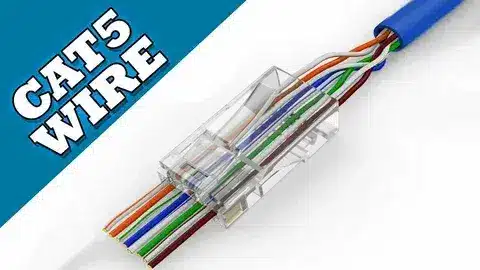
Cat5 cable inserted into RJ45 connector with color-coded wiring aligned for crimpin
Uncategorized

How to Make Cat5e Cable: DIY Ethernet Cable Tutorial

This tutorial walks you through making your own Cat5e Ethernet cable, a cost-effective way to customize cable lengths for home or office networks. It explains the essential tools—such as a crimping tool, RJ45 connectors, and wire stripper—and details the step-by-step process: cutting the cable to size, stripping the outer jacket, arranging the twisted pairs in the correct wiring standard (T568A or T568B), and crimping the connector securely. The guide also provides tips for testing the finished cable with a network tester to ensure reliable connectivity. By following these steps, anyone can create durable, high-performance DIY Ethernet cables tailored to their specific networking needs.

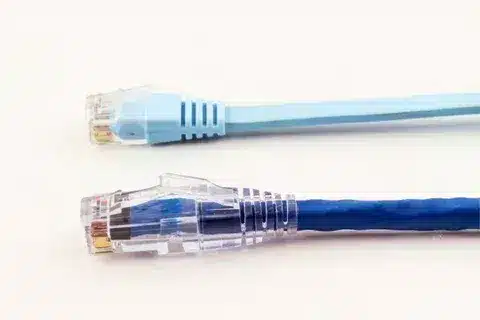
Close up of Ethernet patch cables with RJ45 connectors for reliable connections
Uncategorized

Cat6 Cable vs Ethernet Cable: Understanding the Key Differences

As explained in this article, Cat6 cables are not another type of cable, but a special category of Ethernet cable. The Cat6 is the 6th generation Ethernet specification of 10 Gbps and 250 MHz frequency. The guide not only compares Ethernet cable types (Cat5e, Cat6, Cat6a), but it also dispels some of the common myths surrounding Ethernet cables, provides some advice about choosing between home and business usage, and offers some hints on how to install the cables to ensure the most optimal functionality.

Scroll to Top

GET A QUOTE